Exploring data
Before starting
If you just installed TRAX LRS, there is no data to explore in your LRS. So the first step should be to populate your LRS with fake or real data, and there are a few ways to do that:
- Seeding data will generate fake data.
- Running the ADL test suite will inject testing data generated by the ADL test suite.
- Importing data will let you import real data from an existing source such as another LRS.
- Using the standard API will let you inject real data from an xAPI client.
- Making a CMI5 integration with an LMS will let you inject real CMI5 data coming from this LMS and its contents.
Once you have some data into your LRS, you can go to the Data tab of your LRS.
Selecting a store
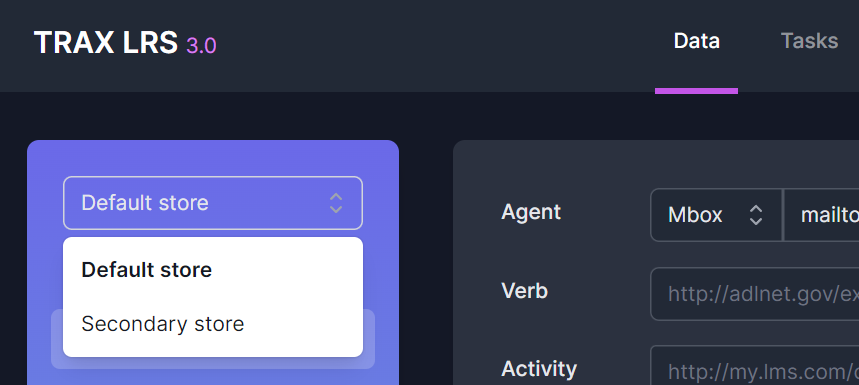
If you just installed TRAX LRS, you have only one store in your LRS, so you don't have to select a store. If you need to organize your xAPI data into multiple stores, then you should read the structuring your LRS documentation page. If you already have several stores, then you should see the store selector at the top-left of the page.
Exploring statements
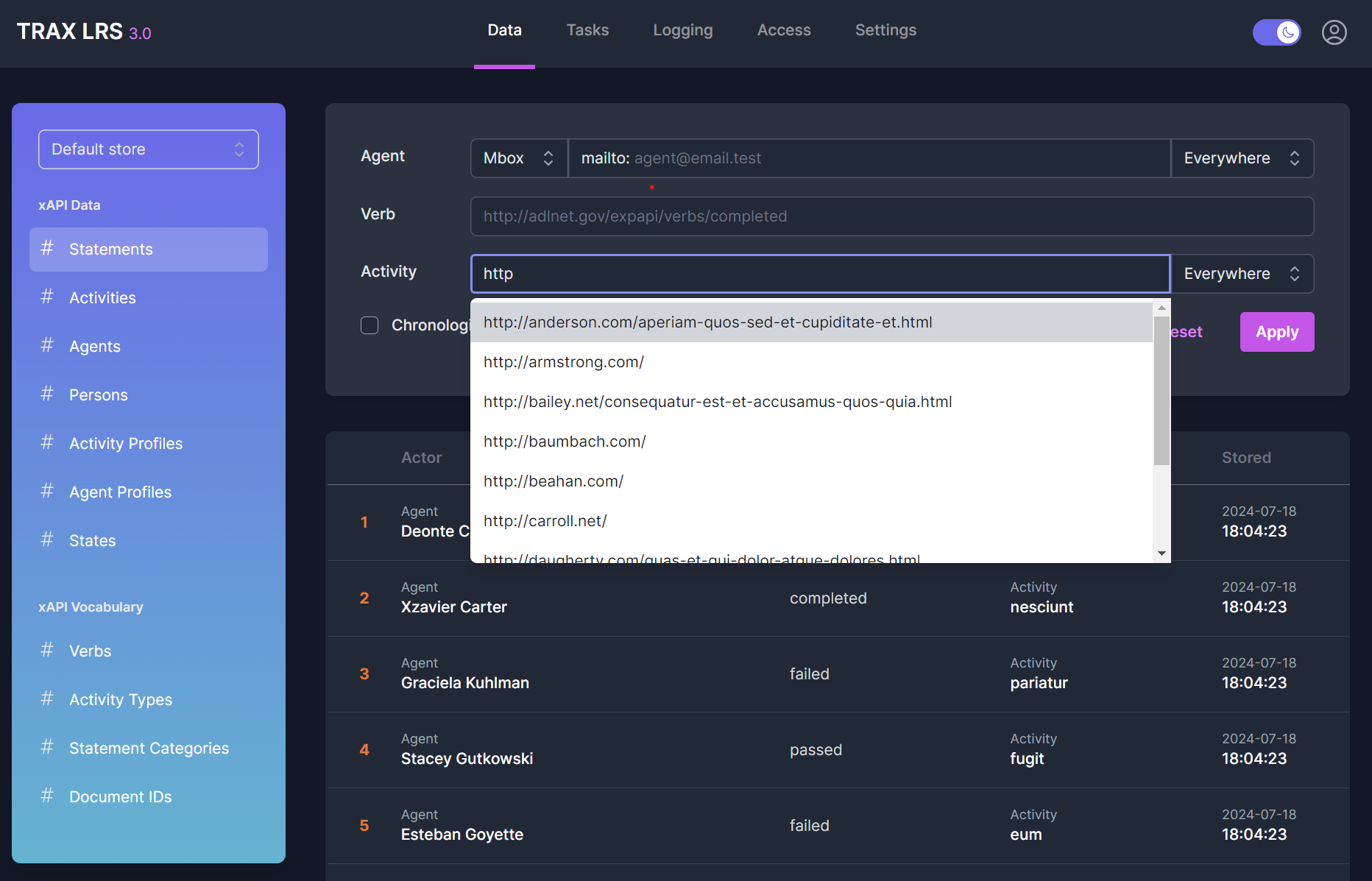
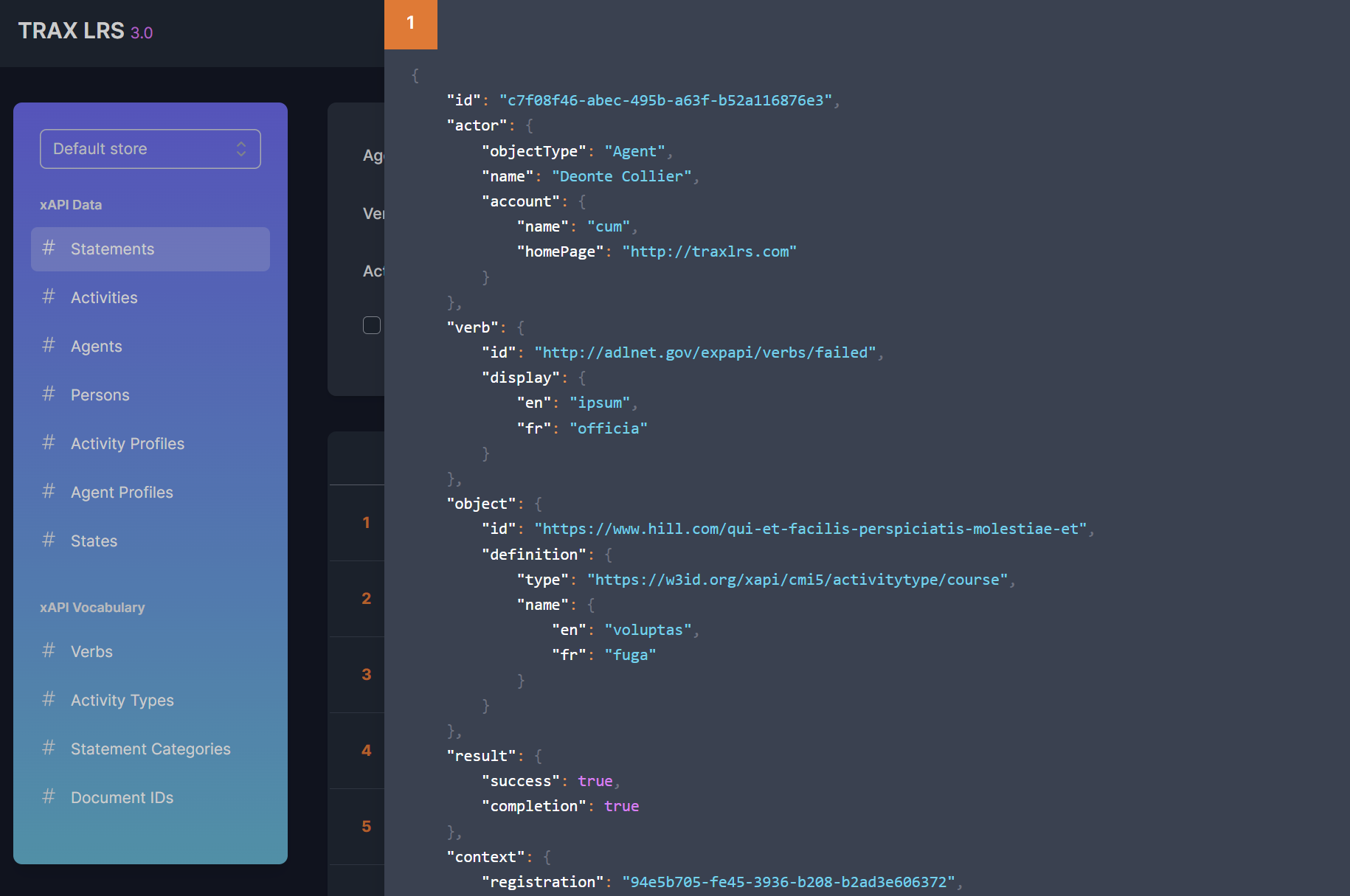
The Data > Statements page:
- Lists all the available statements, except voided statements
- Offers some useful filters with auto-completion
- Shows the statements JSON with syntax highlighting
Exploring activities
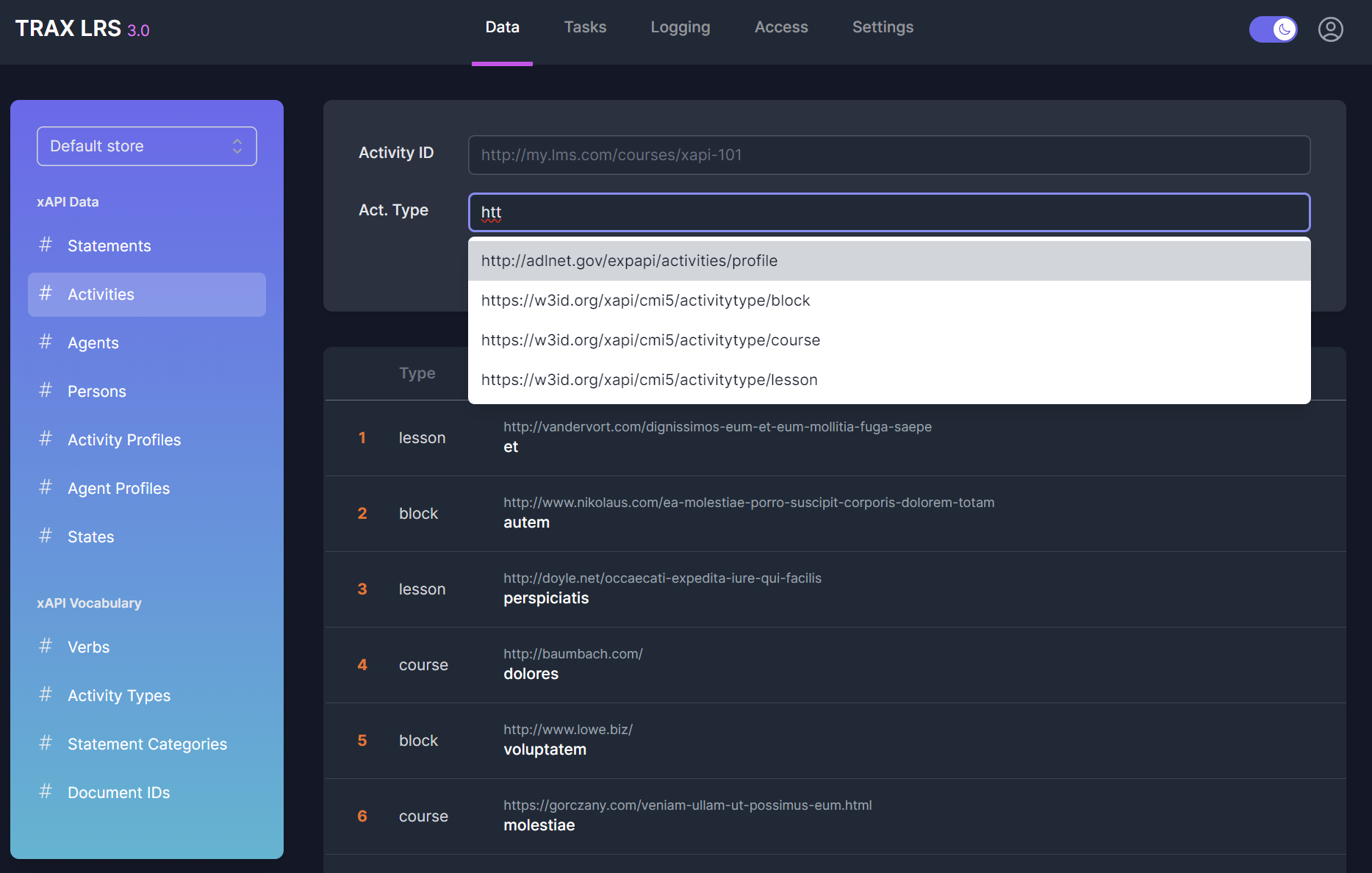
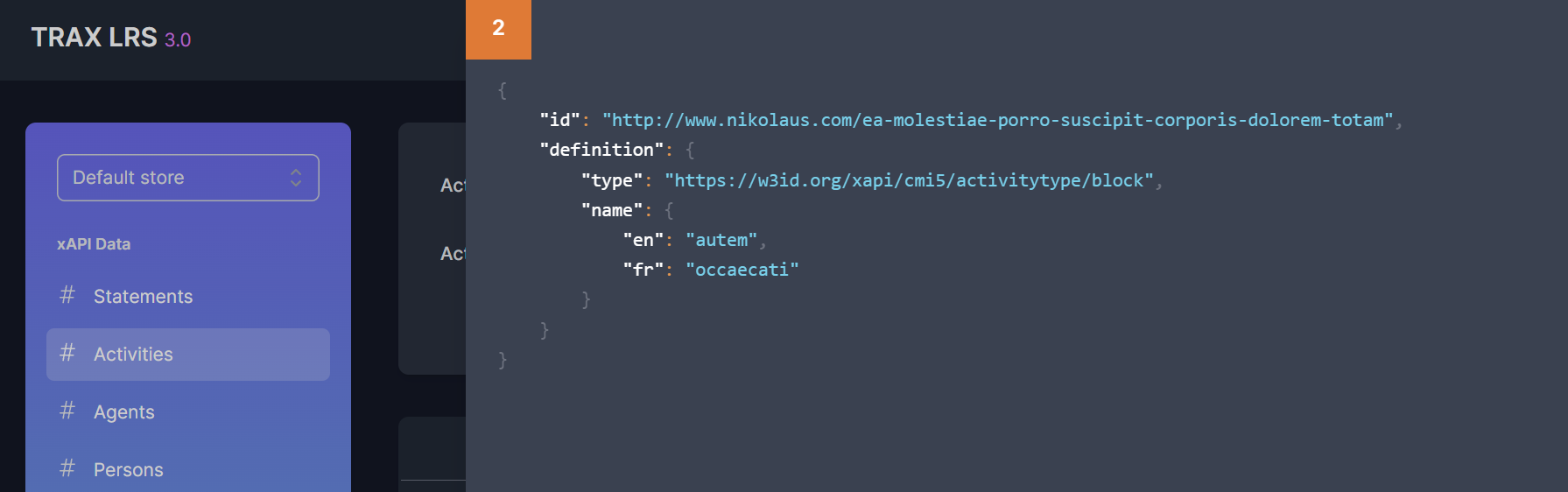
The Data > Activities page:
- Lists all the available activities
- Offers some useful filters with auto-completion
- Shows the activities JSON with syntax highlighting
Exploring agents
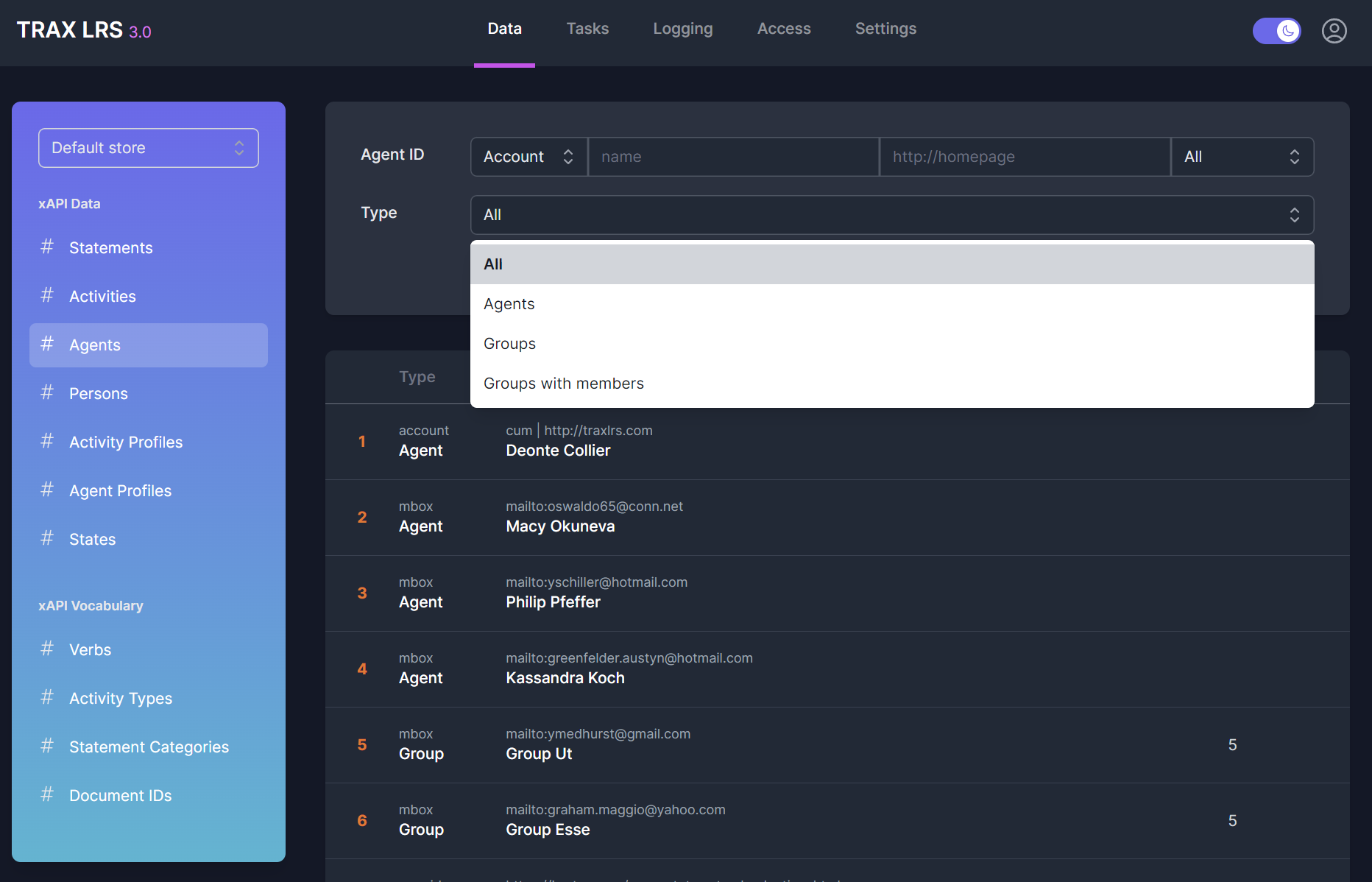
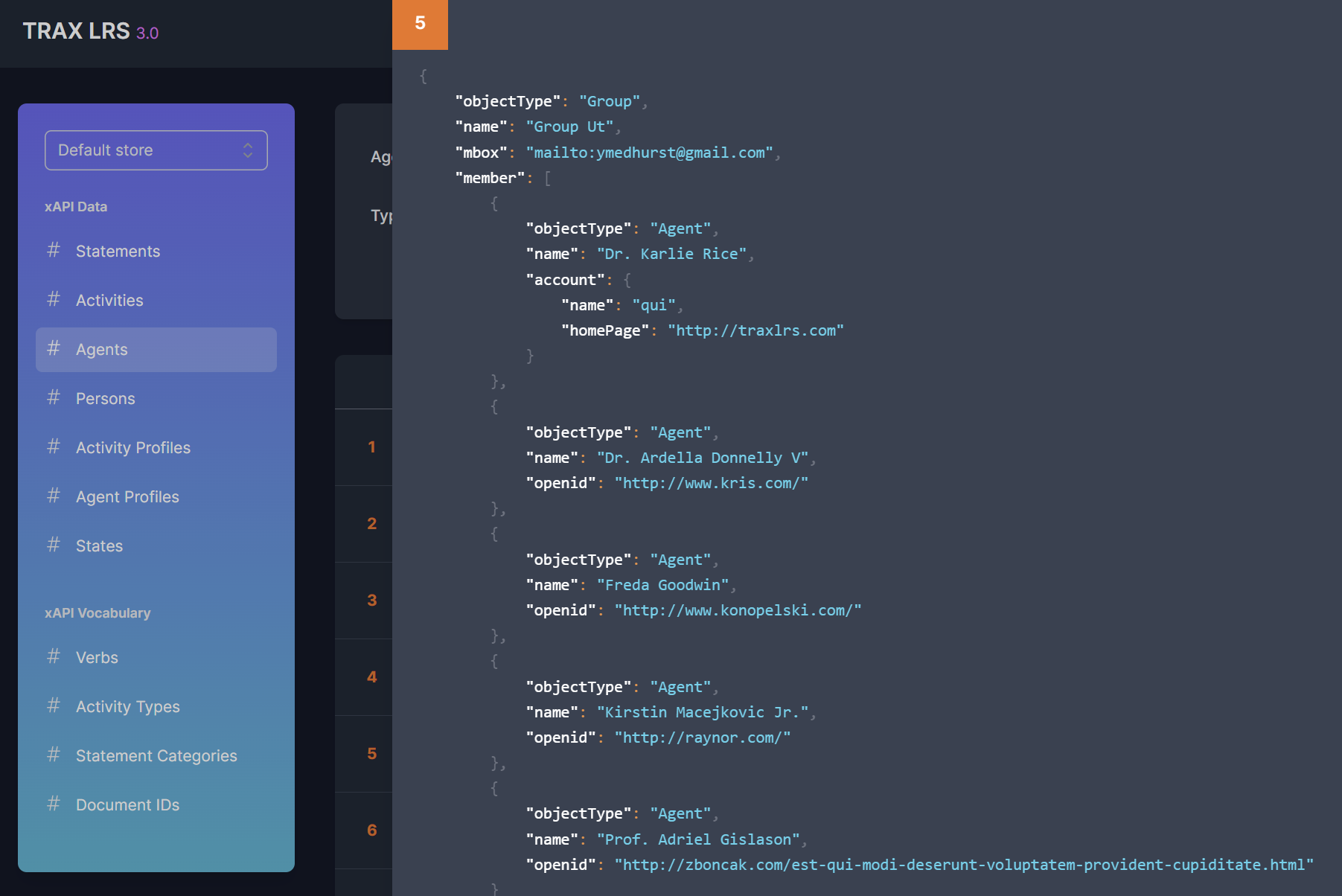
The Data > Agents page:
- Lists all the available agents, including agents and groups
- Offers some useful filters with auto-completion
- Shows the agents JSON with syntax highlighting
- Shows the group members
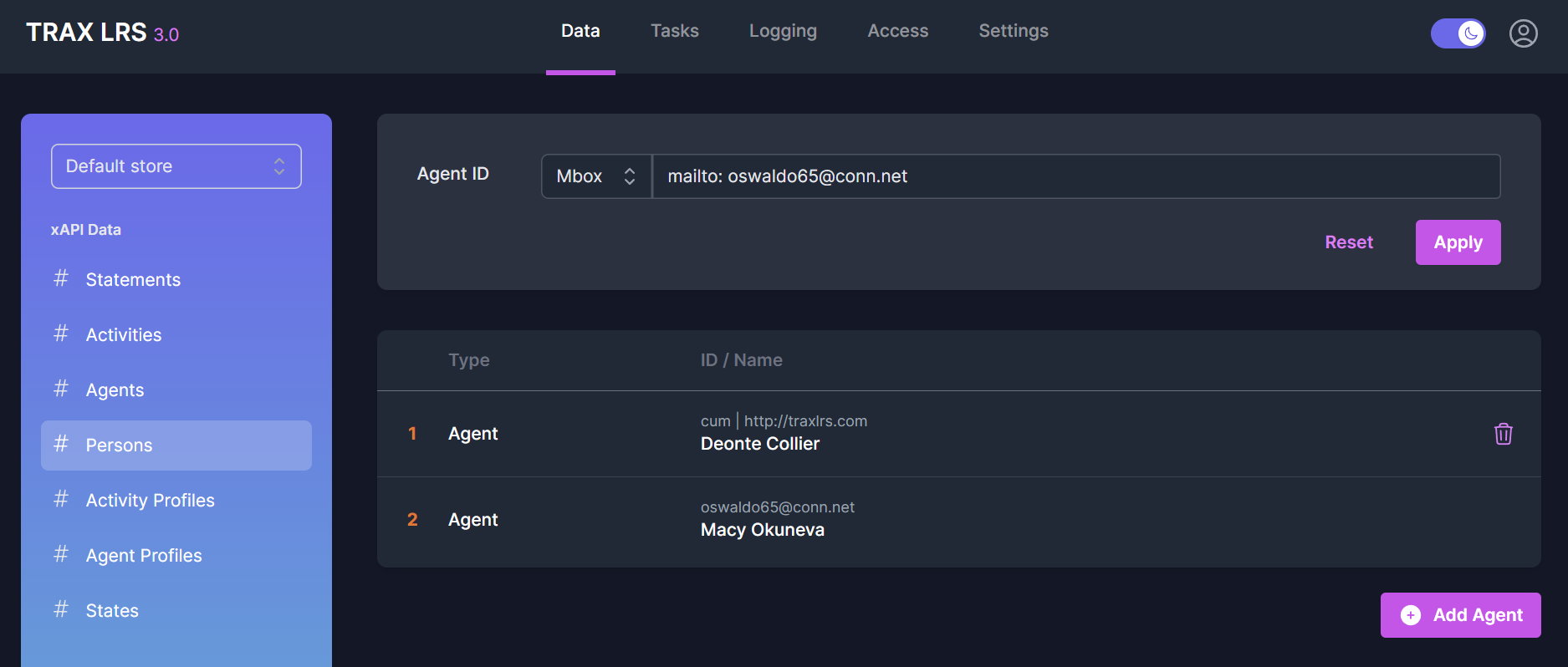
Exploring persons
From the Data > Persons page, you can enter an agent and see all the agents which are related to the same person.
From this page, you can also manage persons.
Exploring activity profiles
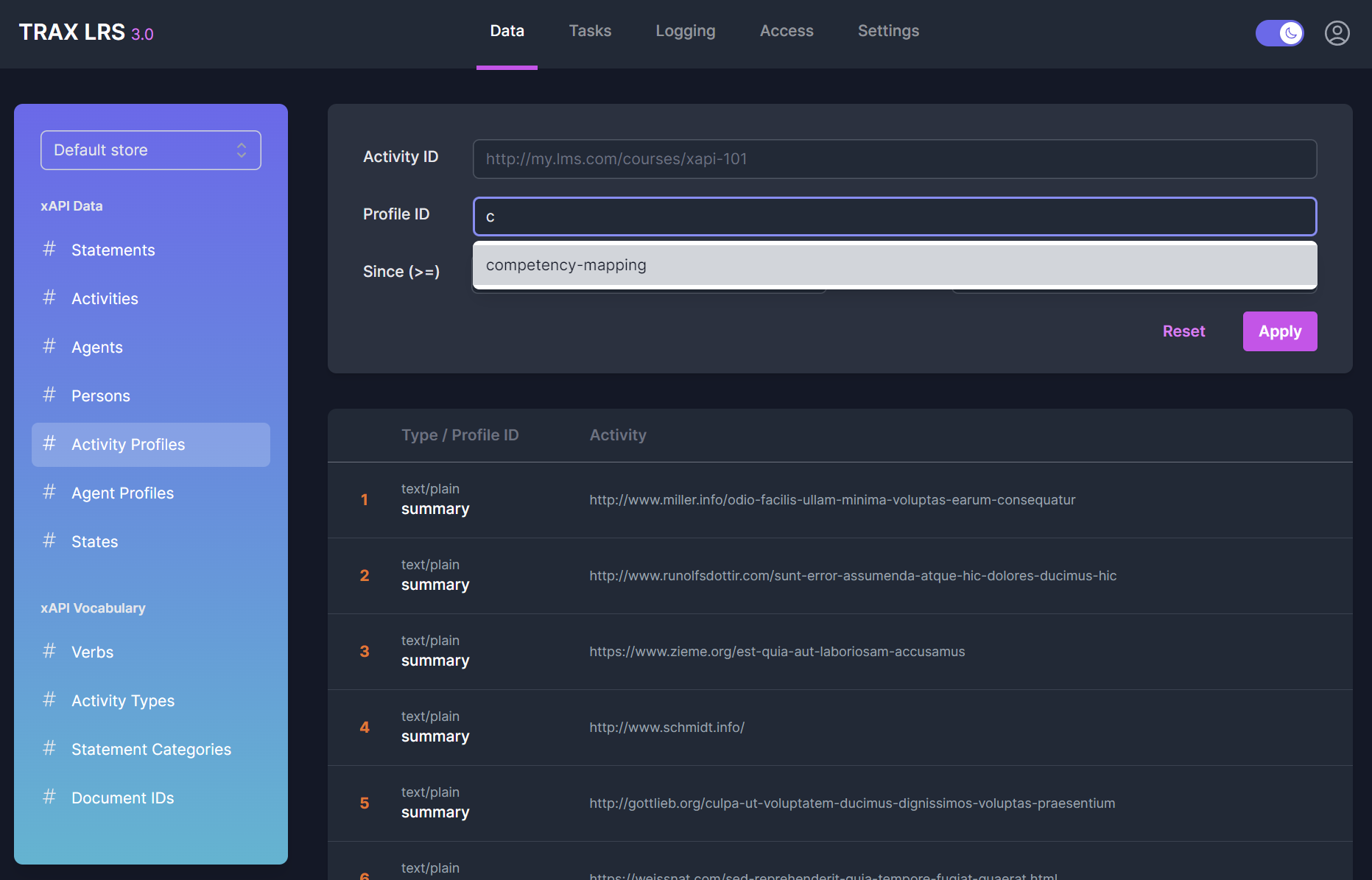
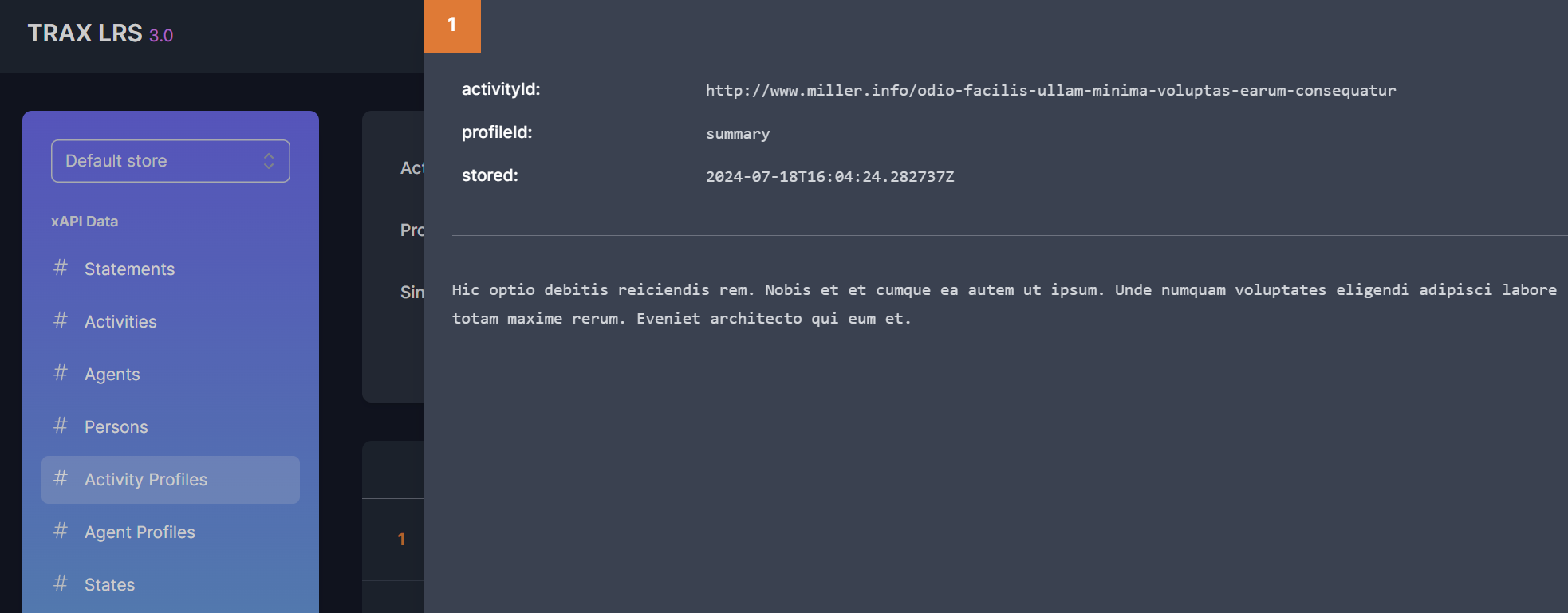
The Data > Activity Profiles page:
- Lists all the available activity profiles
- Offers some useful filters with auto-completion
- Shows the activity profiles details
Exploring agent profiles
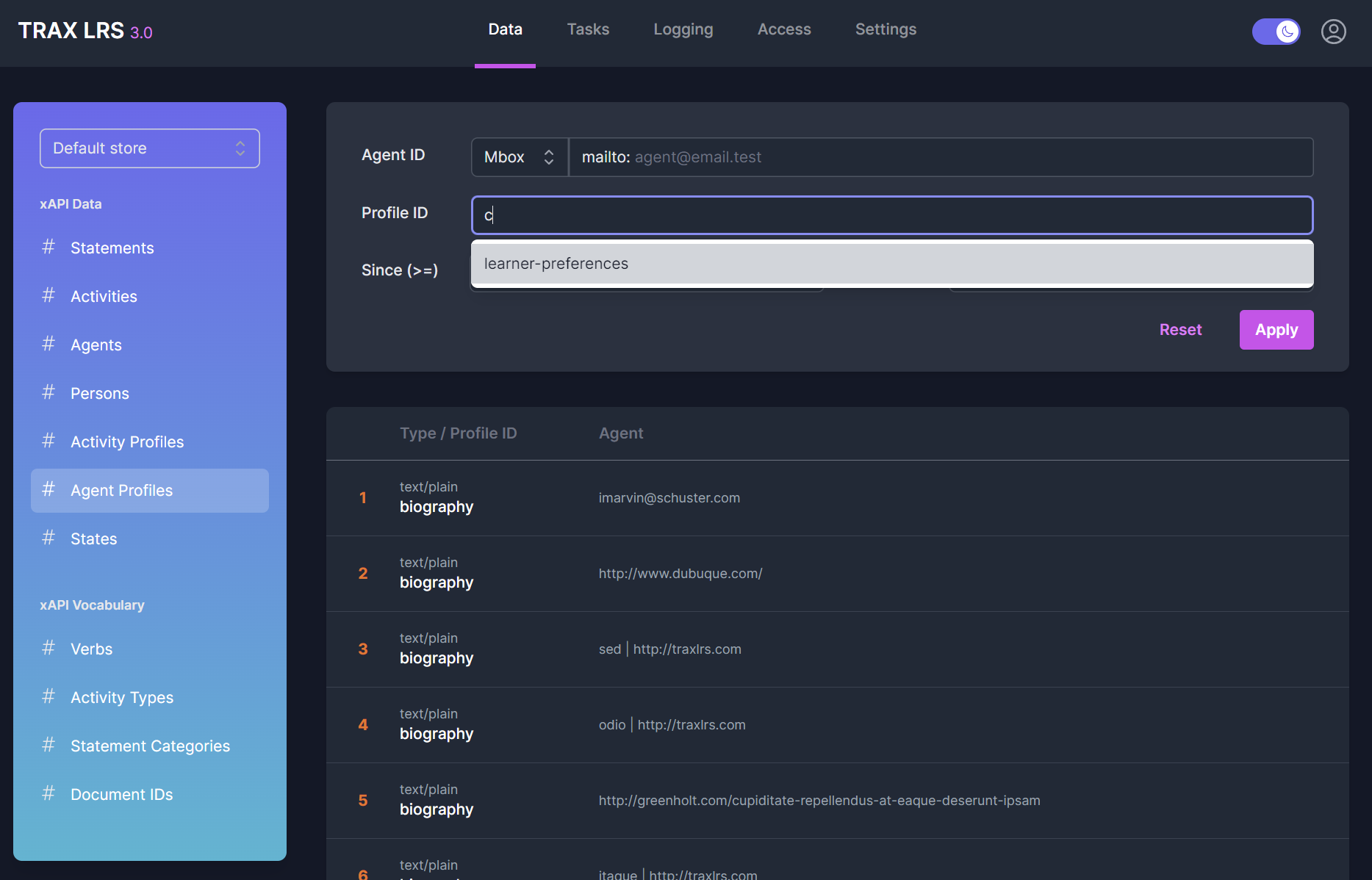
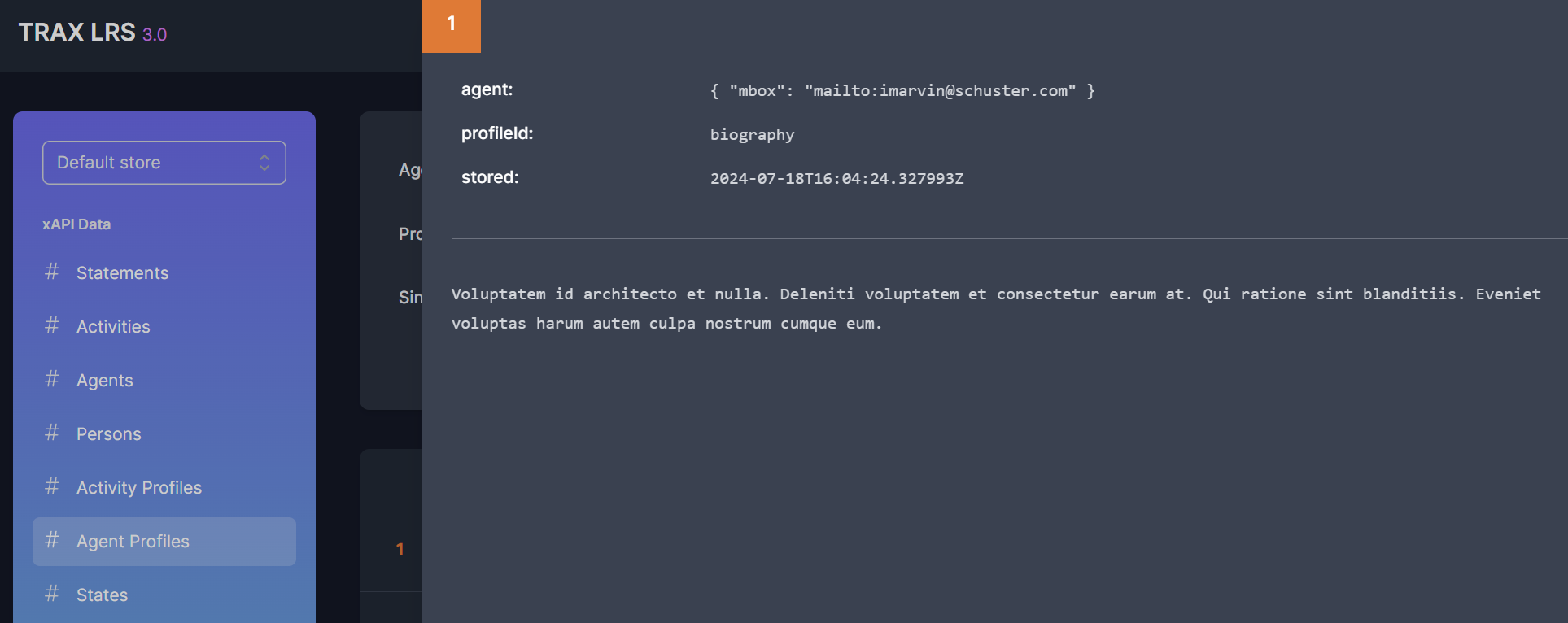
The Data > Agent Profiles page:
- Lists all the available agent profiles
- Offers some useful filters with auto-completion
- Shows the agent profiles details
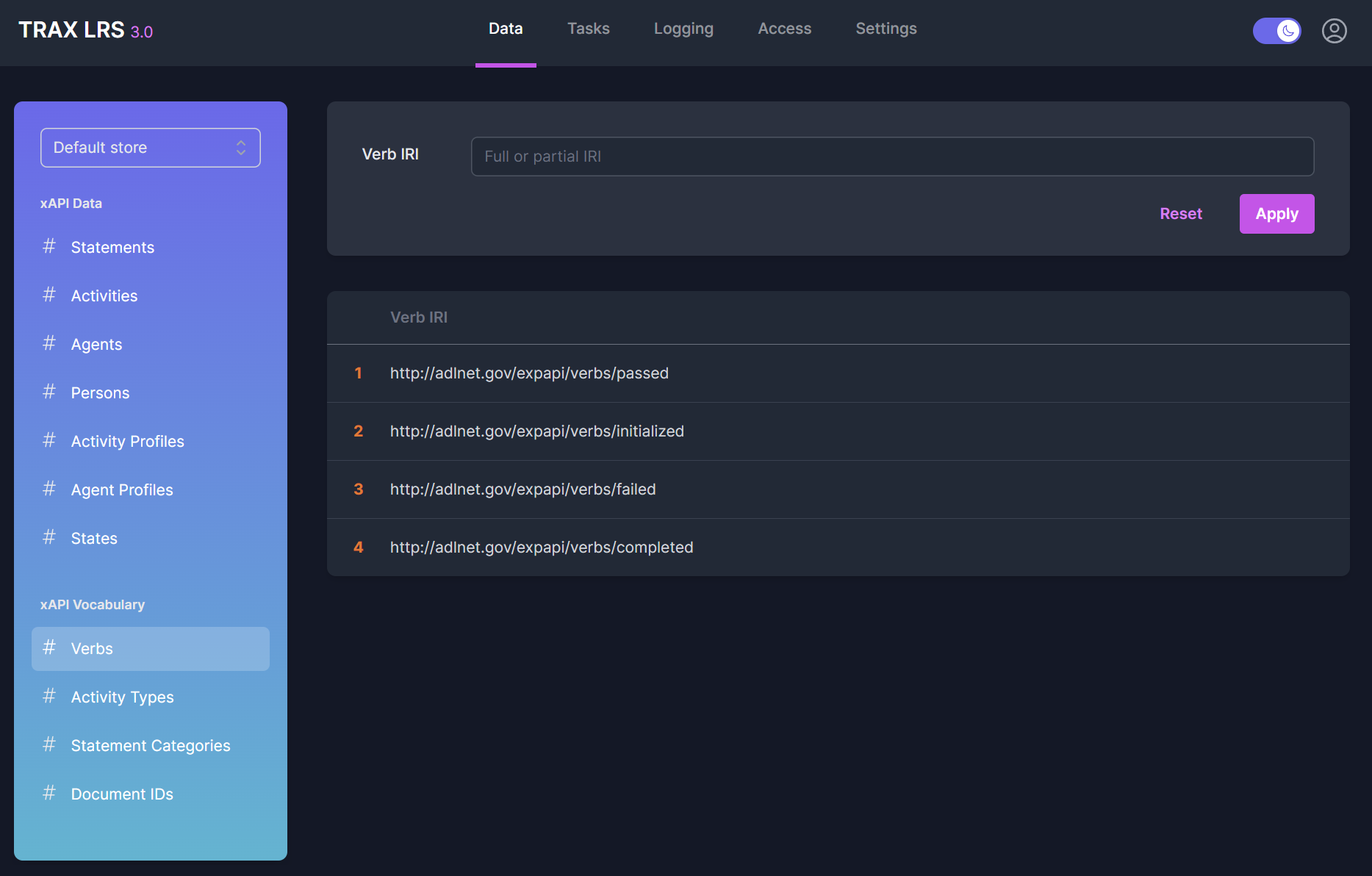
Exploring verbs
From the Data > Verbs page, you can see all the verbs extracted from statements,
and search for them with a plain text filter.
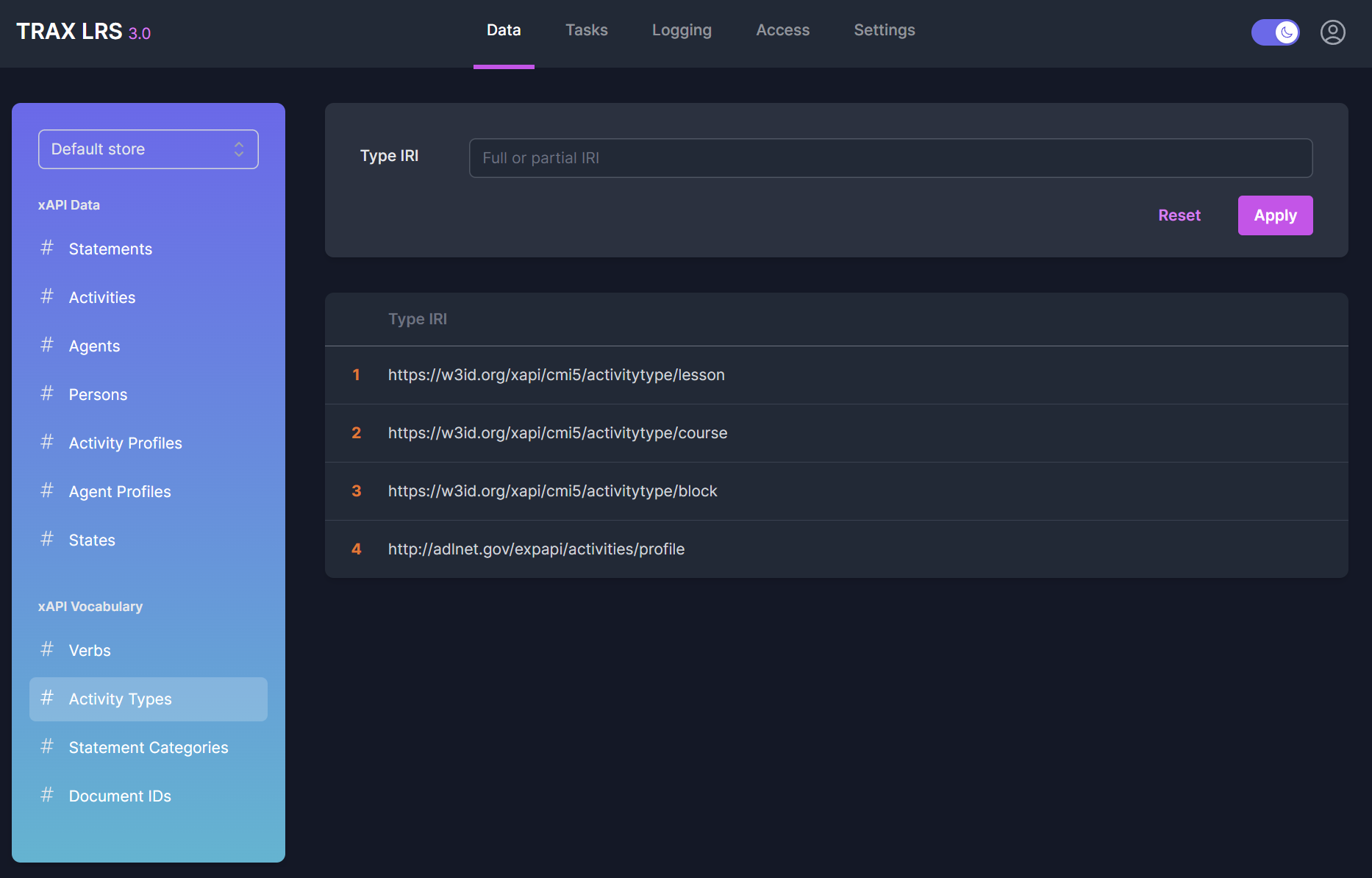
Exploring activty types
From the Data > Activity Types page, you can see all the activity types extracted from statements,
and search for them with a plain text filter.
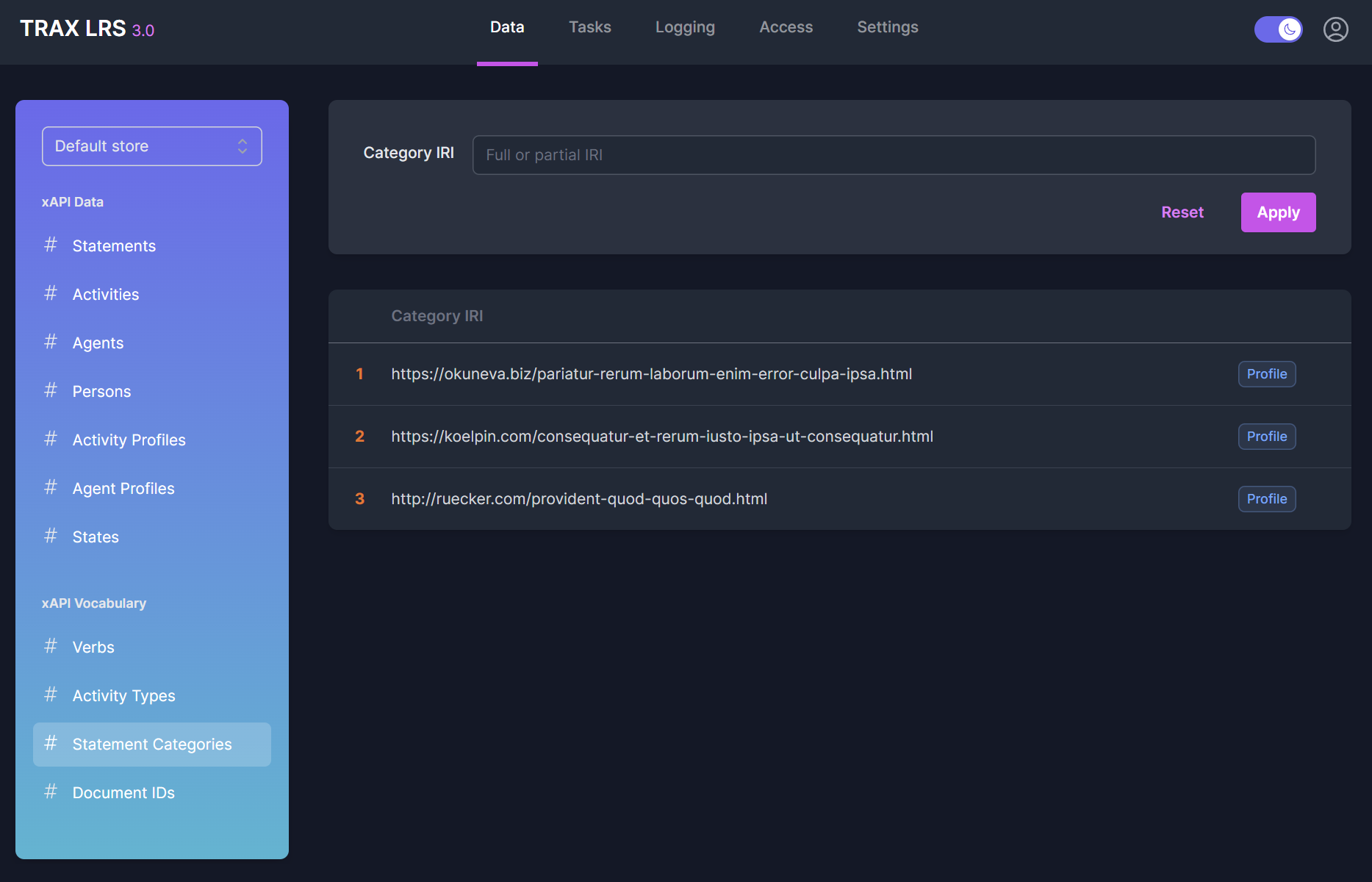
Exploring statement categories
From the Data > Statement Categories page, you can see all the categories extracted from statements,
and search for them with a plain text filter.
Categories which have been identified as xAPI profiles are marks with a Profile tag.
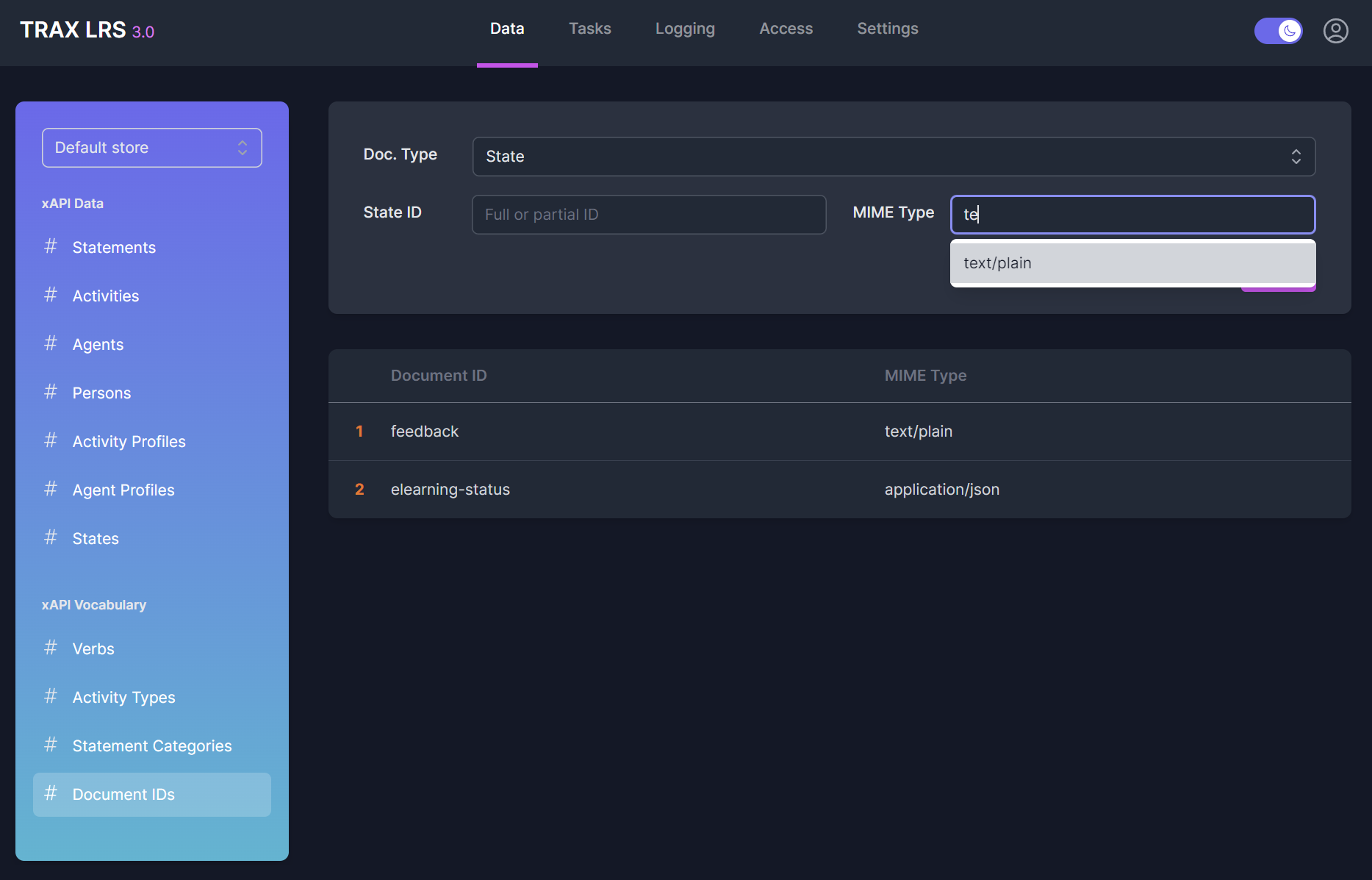
Exploring document IDs
From the Data > Document IDs page, you can see all the document IDs extracted from statements,
and search for them with a few filters.